Registered Users
This guide explains how to create a Registered User in Merge Agent Handler. Registered Users are how we isolate credentials and how we identify the user interacting with the agent. Each Registered User contains the credentials available for making authenticated tool calls on their behalf. A Registered User can represent your employees, your customers’ employees, your customers’ customers’ employees, or any end user who needs to interact with third-party systems through your agent.
We recommend creating a Registered User for each individual — this maintains credential isolation and ensures users can only access what they’re authorized to in their third-party systems.
How to create a Registered User
The key components of a Registered User are:
- Origin User ID: Unique ID of the user of the agent.
- Origin User Name: The name of the user of the agent
- Shared Credentials Group: The object that identifies the different groups a user is part of.
- Origin Company ID: The unique ID of the company of the user.
- Origin Company Name: The name of the company of the user.
- Custom Keys: This is an optional identifier / grouping container that you can provide for additional segmentation.
POST Request body to Merge Agent Handler
In your backend, set up a POST request to register the user to the below URL:
You will provide these values in the request to Merge Agent Handler.
API Response from Merge Agent Handler
This ID will be used as part of your MCP Entry URL for when the given Registered User begins to interact with your agent.
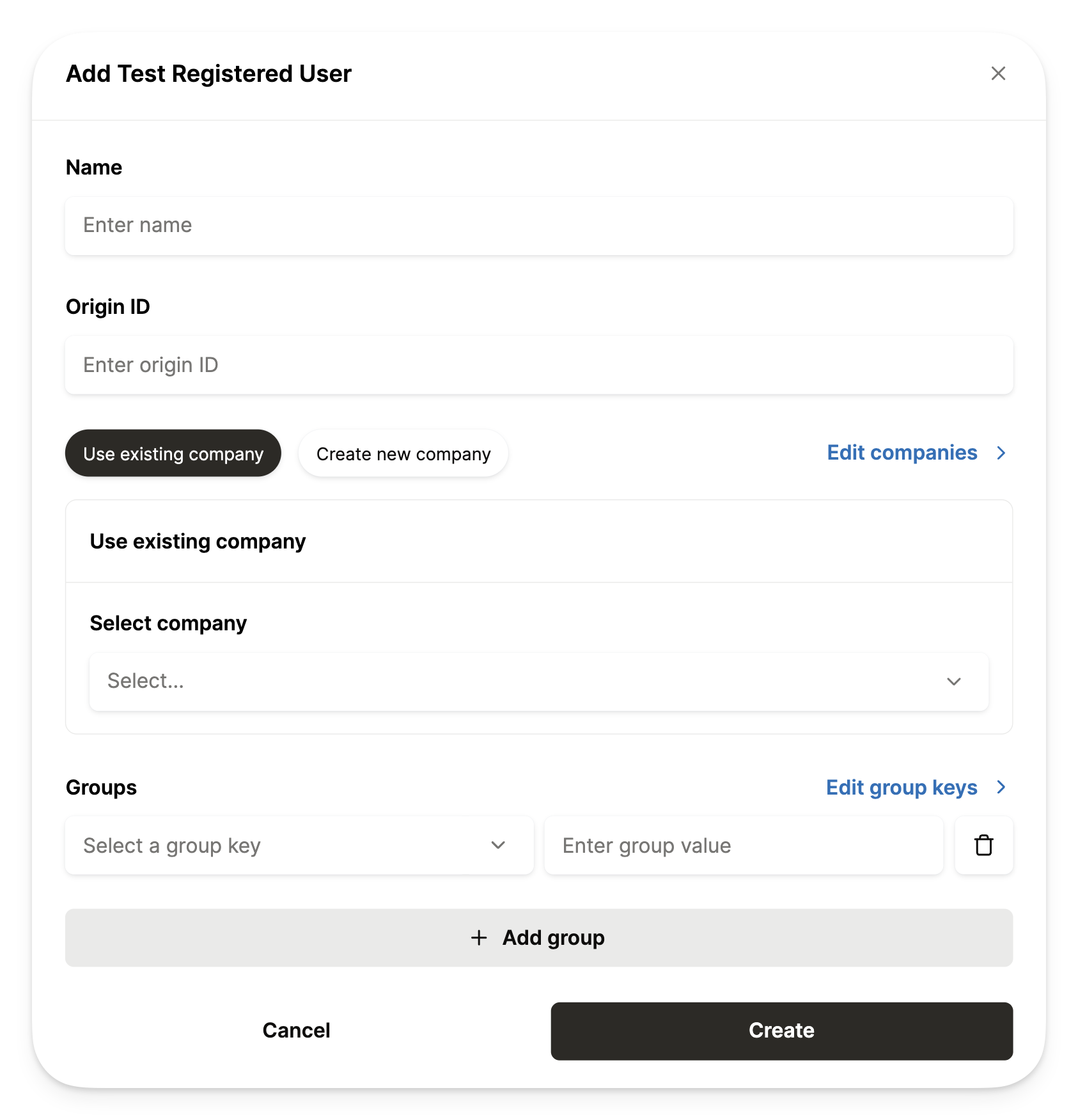
How to create a Test Registered User
- Navigate to the Test Registered Users page in dashboard
- Click ”+ Add Test Registered User”
- Enter the following information:
- Name of your test user
- Unique identifier of your test user
- Company your user belongs to. You can also create a new company to group the user.
- Additional groupings of the user (optional)
- Click “Create”